cwRsyncServer 4.1.0 配置
一、安装步骤
1.1 下载
文件名: cwRsyncServer_4.1.0_Installer.exe
下载: https://download.lovev.top/soft/windows/cwRsyncServer_4.1.0_Installer.exe
1.2 安装
- 双击运行
cwRsyncServer_4.1.0_Installer.exe - 安装路径用默认的:
C:/Program Files (x86)/ICW - Service Account 设置(创建 Windows 服务账户):
- Service account:
SvcCWRSYNC(保持默认 SvcCWRSYNC) - Type password: 输入随机生成的密码(密码可能后续修复时有用,没必要记录)
- Confirm password: 再次输入
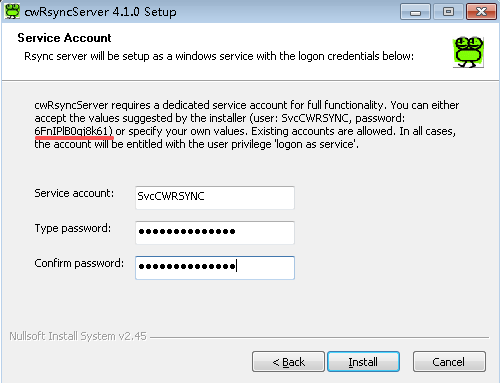
- 上边都保持默认,安装即可
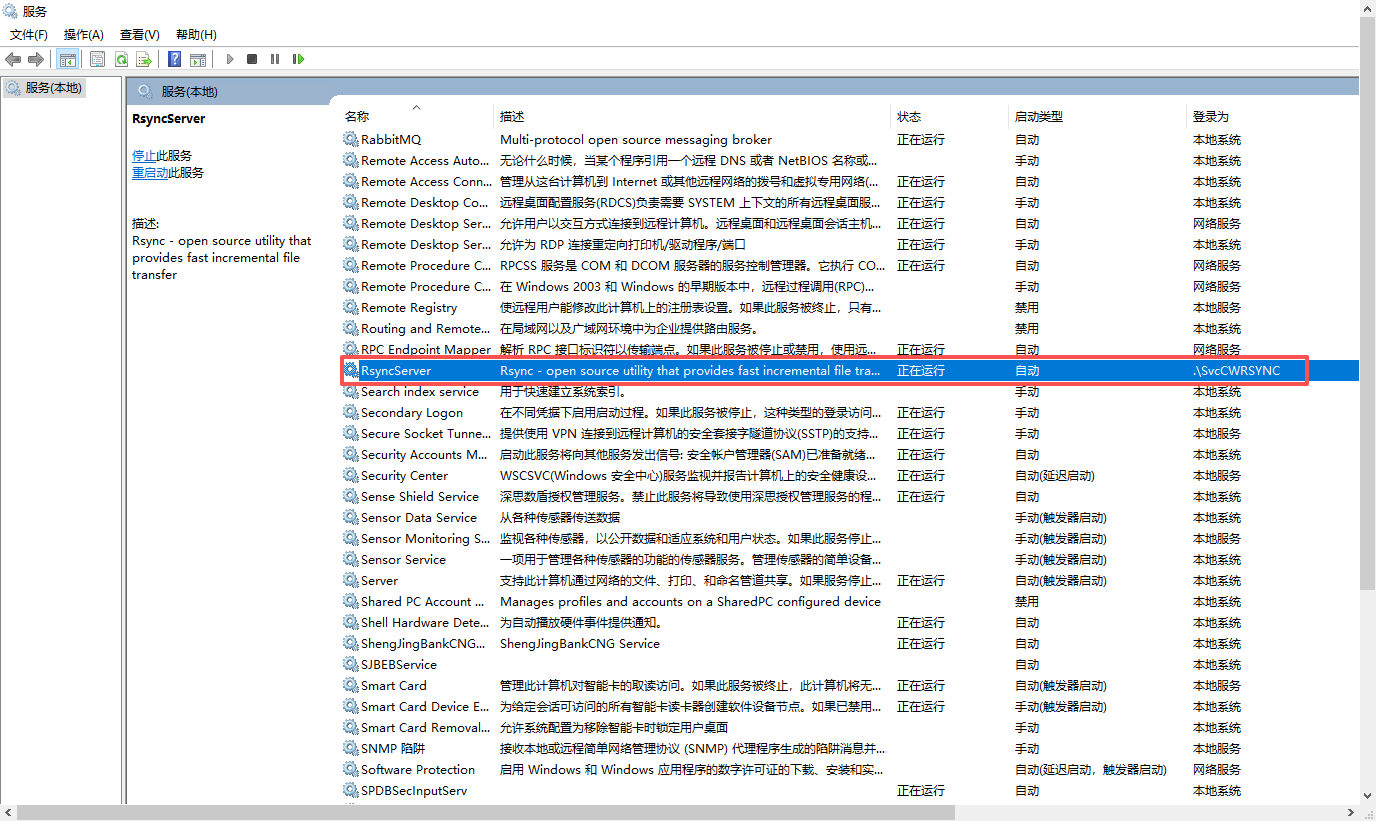
1.3 启动服务
| Text Only | |
|---|---|
1.4 配置防火墙
图形创建,网络-右键属性- Windows Defender 防火墙-高级设置-入站规则-新建规则
二、服务端配置
2.1 编辑 rsyncd.conf
文件位置: C:/Program Files (x86)/ICW/rsyncd.conf
编辑内容:
重要说明:
gid = 0和uid = 0— 4.1.0 版本必须有这两行!path— Cygwin 格式路径(f 盘写成/cygdrive/f/)auth users— 认证用户名(自定义)secrets file— 密码文件路径(Cygwin 格式)
2.2 创建密码文件
文件位置: C:/Program Files (x86)/ICW/etc/rsyncd.secrets
创建内容:
| INI | |
|---|---|
格式说明:
- 格式:
用户名:密码 - 一行一个用户
- 密码至少 8 位,建议包含大小写、数字、特殊字符
设置权限:
- 右键
rsyncd.secrets→ 属性 → 安全 - 删除所有用户,只保留 Administrators
- 权限设为"完全控制"
2.3 重启服务
三、Linux 客户端配置
3.1 创建密码文件
| Bash | |
|---|---|
3.2 手动同步测试
从 Windows 同步到 Linux(拉取模式):
| Bash | |
|---|---|
参数说明:
-a- 归档模式(保留权限、时间戳等)-v- 详细输出-z- 压缩传输(内网可以不用,节约CPU负载)-n- 空运行(测试用,不实际传输)-P- 进度显示 + 断点续传--delete— 源删除则目标删除--password-file— 密码文件路径
路径说明:
<Windows_IP>— Windows 主机的 IP 地址data— rsyncd.conf 中定义的模块名/nas/homes/back-caiwu/back/— Linux 目标路径
3.3 带斜杠和不带斜杠的区别
| Bash | |
|---|---|
推荐: 用 data/(带斜杠),只同步内容